Setup 2FA Security - CTSG RDP SESSIONS
Published on January 9, 2026
Hello,
Following some changes moving into 2026 CTSG has discontinued the use of Logmein for remote support.
Though many of you have previously paid for Logmein we will be continuing our support services through our new internal support platform.
Our new platform, though irritating to learn, has been a blessing in maintaining our competitive edge by reducing login time, easier management of our sites, and a huge help in detailed reporting of issues happening at your buisnesses.
With all of this being said. Security of our platform is non-negotiable and Two Factor Authentication is required.
Users who do not setup 2FA within their first week of use will have the user account revoked until a call is made to CTSG to setup 2FA so it is deterimental you follow the steps below.
Step 1:
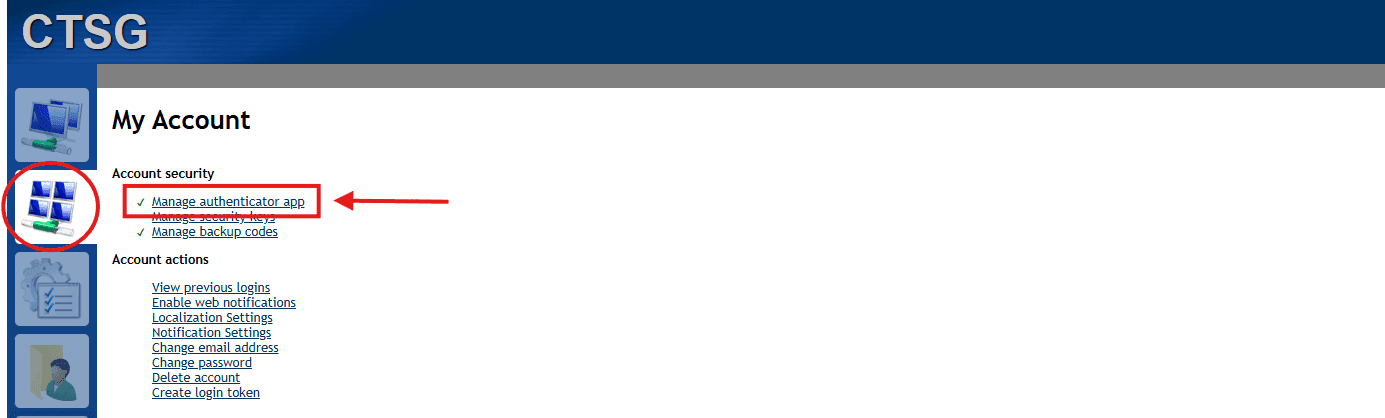
Once you have your new user account signed in with your new password set. Navigate to the left side menu and hit the second pane down.
Step 2:
Click on the option for "Manage Authentication App"
**Step 3:
Use one of the following 2FA apps on IOS or Android**
-Google Authenticator
-Microsoft Authenticator
-Authy
-Duo Mobile
Step 4:
Use your selected 2FA app and find the "Add" button or something resimbling the QR Code on screen.
Step 5:
Your device should have a new line showing on the auth app showing RDP.CTSG.US
Copy the code on screen and type it in on the same page you previously accessed the QR Code.
FINAL:
Now that 2FA is enabled, each new login will need the code from the authenticator app.