How To Use: RDP.CTSG.US
Published on January 9, 2026
How to Navigate Mesh Central.
Each CTSG employee is given an account at the start of their employment period.
On the first login, new employees will be prompted to set a new STRONG password. At least 12 characters using at least one special character.
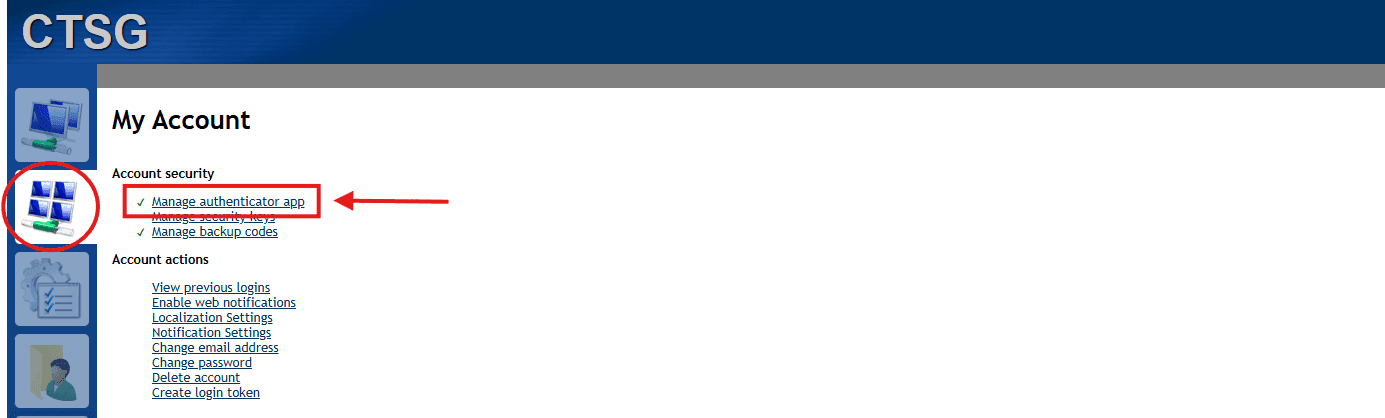
STEP 1: Select the second window on the left pane. This will open the "My Account" page. Once you are in this page, please setup 2FA under the Account Security options under the "My Account" Page.
STEP 2: Learning how to use the central connection service.
Select the top window on the left hand side pane. This will show you the full list of PCs and groups made available to you from Admin users.
On the list of devices you will find that the groups header above the PC list has two buttons on it. "Add Agent" and "Invite"
Add Agent - Adds a computer to the group selected. (ONLY USE THE X64 INSTALLER, ARM64 DOESNT WORK WITH INTEL CPUs)
Invite - Allows access to a PC for a limited amount of time before the program removes itself.
NOTE: THESE INSTALLERS ARE ALREADY MADE AND FOUND IN THE UTILITIES FOLDER ON NEW INSTALLS BEGINNING JAN 1, 2026.
STEP 3: MAKING YOUR FIRST CONNECTION
1. Click on the PC you are needing access to.
2. Choose the desktop tab in the top of the new page that pops up.
3. Hit the connect button at the top of the blanked viewer.
4. Access is complete and work can be done.
NOTES:
1. Copy/Paste options are not available through keyboard macros, only available through the "Clipboard" option.
2. Blank screen doesn't exist for Mesh Central, unless you open a normal connection + rdp connect at the same time, but this requires a restart.
STEP 4. MANAGING PCs
Same location as STEP 3.
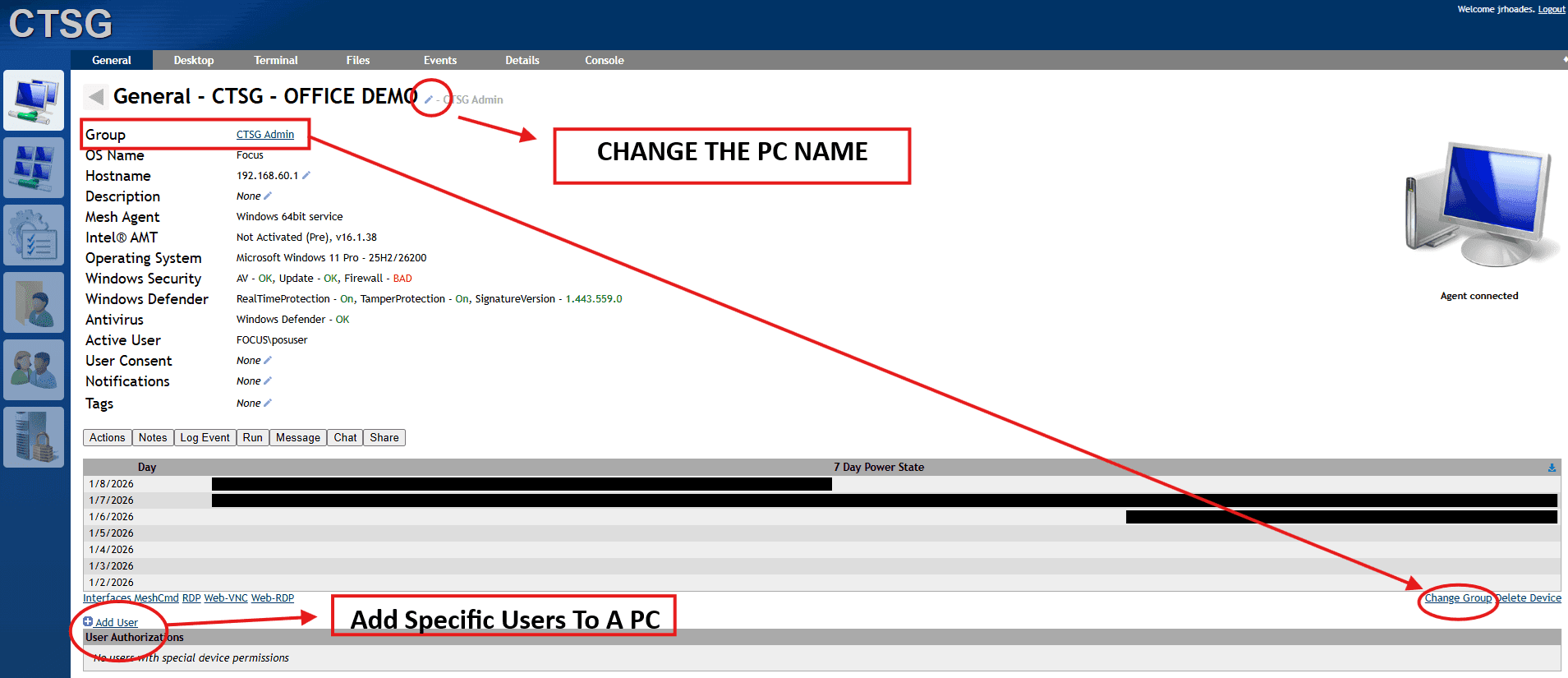
You will notice when looking at the general tab, multiple managment options are available to change and manage.
PLEASE SEE THE IMAGE BELOW TO SEE ALL THE MANAGEMENT OPTIONS.
STEP 5: (MANAGEMENT ONLY)
Enter the fifth page on the left hand pane.
Creating accounts - Please ensure you fill out all the information correctly for the employee. First Initial+Lastname for username, company email, and write down the password and ensure you check the box for "FORCE PASSWORD RESET ON NEXT LOGIN"
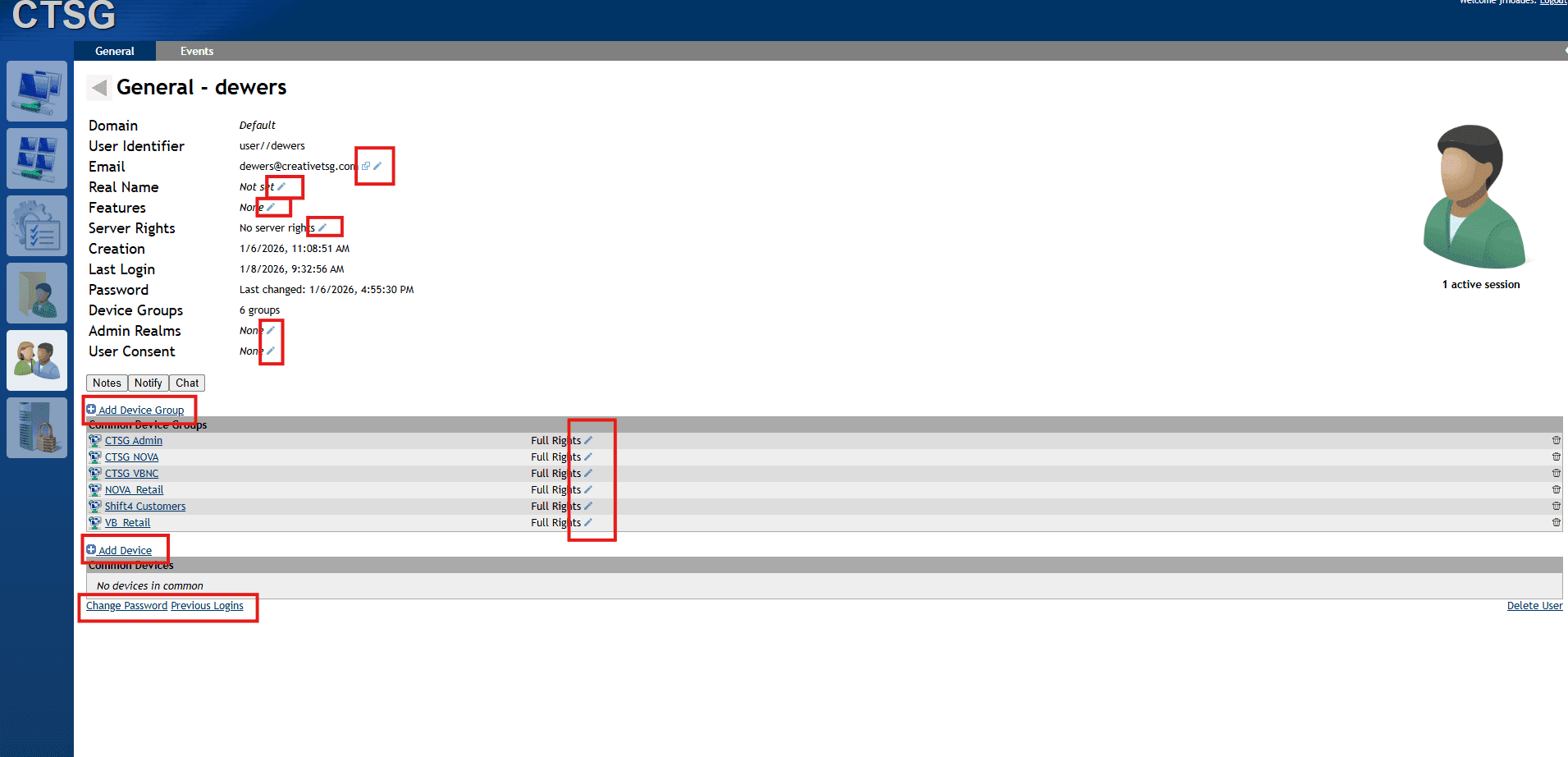
Managaging Accounts - Click on the user you would like to adjust.
FOLLOW THE IMAGE BELOW TO SEE OPTIONS BASED ON THE USER LEVEL.
OTHER MANAGEMENT DOCUMENTATION WILL BE AVAILABLE SOON FOR MESH CENTRAL