Configuring Remote and Thermal Printers
The posting will teach you how to configure Epson thermal and kitchen printers using the Epson software.
Thermal Printers:To configure a Epson thermal printer, you will need to ensure that the printer is plugged into a reliable power source and is plugged into the PC via USB to USB-B connection. The USB-B going to the printer, and the USB going into a USB 2.0 port on the bottom of the PC. Once you have completed the installation of the thermal printer to the station, you will open your "Epson TM Virtual Port Driver Port Assigner tool". I have provided an image of what the tool will look like when you look for it in search.

If the tool does not show up in the search, you will have to install the utility from your utilities folder. The path to find this installer is Focus Utilities (Date) > Printer Tools > Epson > Thermal Receipt, and the installer you are looking for will be labeled "TMVirtualPortDriver870c". If the directory path is different for you, just remember the name of the installer and that it would be under the "Printer Tools" directory.
Once you have opened the tool, a window will open that looks like this...
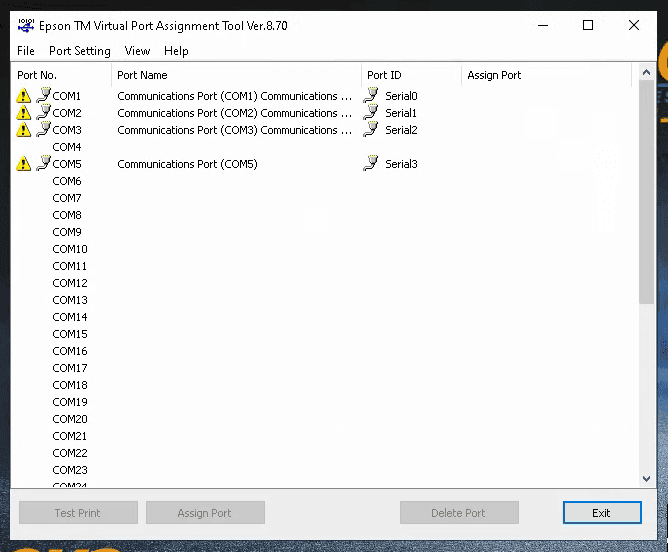
Once this window has opened, you will assign the printer to "COM10". This is important because other com ports like COM9 we use for devices like pin pads. ALWAYS ASIGN THERMAL PRINTERS TO COM10.
Once you have assigned the printer to the com port, you can test to make sure the com port connection was successful by highlighting the COM10 if it is not already, and pressing the "Test Print" button at the bottom left corner of the window. Once you have gotten a successful test in the Epson port assigner, the rest of your setup will take place in the Focus application.
Kitchen Printers:
Kitchen printers have a few more steps to setup, but I assure you it is not much more difficult than the thermal printers. To begin setup for the Kitchen printers, you will need to install the printer at it's respective location. To do this, ensure you have a reliable power source to power the printer and then you will look for the NIC card on the bottom of the printer. Plug an ethernet cable into that card, then plug the other end of that patch cable to the keystone wall jack. From there, you will see lights on the NIC around where you plugged in the patch cable. This means the printer is connected to the network and is able to speak locally to all stations. The rest of the install will be handled on the POS station itself.
From the POS station, you will search for the "EpsonNetConfig" tool. I have provided a picture below to show you what this tool will look like in the search.

Once again if the tool does not show up, you can find the installer in the Focus Utilities (Date) > Printer Tools, and it should be called "EConfigv113". Once your tool has been installed and you have opened it, you will be greeted by the following window.
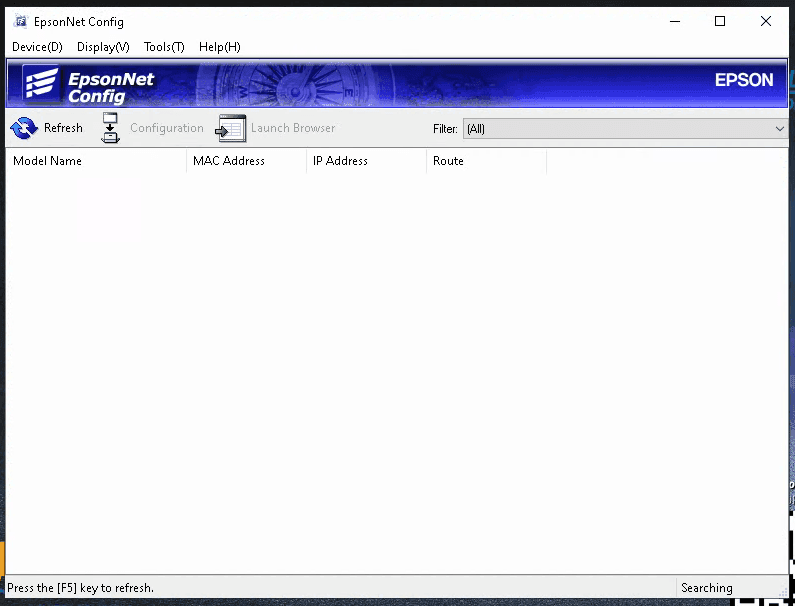
If the printer is not found right away, you can hit the refresh in the top left corner of the window. Give it a second to refresh, and it should populate in the window. Once that printer populates, it should show up with a yellow/orange X next to it. Click on the printer, this will prompt a small loading screen where the application will check the devices current configuration. Once the configuration window opens, you will want to open the "basic" column under TCP/IP. I have provided a screen shot below to show you where you will need to navigate to.
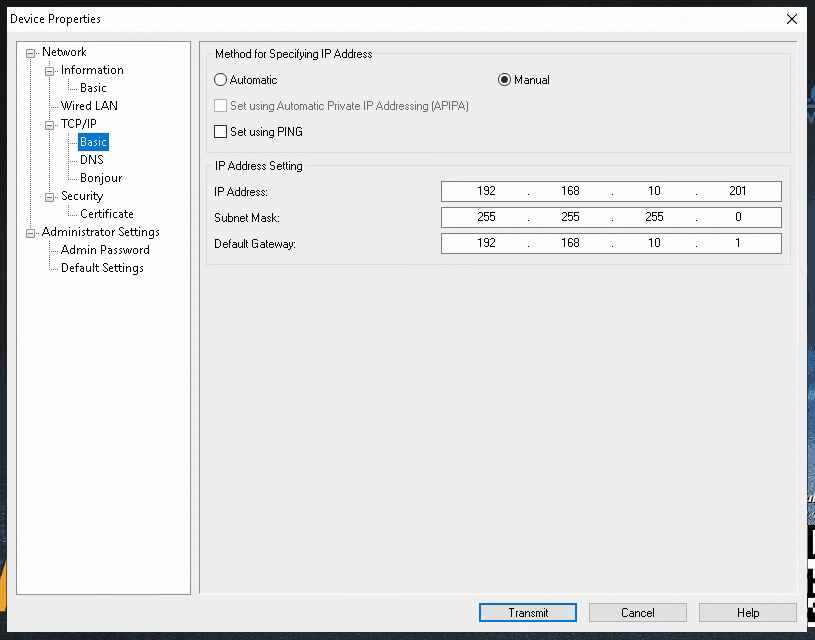
From this window, you can change the IP address to match the gateway IP of you POS router. In the photo I have provided above, the printer has not been configured yet. You will want to match the IP address of the Gateway on your router. We usually setup the gateway on a 192.168.20.1 IP address. For Kitchen printers, we often use 40+ for the fourth octet. So for this printer (since it is the only Kitchen printer on our network) I will assign it a 192.168.20.40 IP address.
IMPORTANT NOTE: Always add a default gateway to your printer configuration. If you do not add one, you will have printing issues later on. For this printer, my Default gateway would be 192.168.20.1 which matches the IP of the router. If you ever forget what the gateway is, just think "what is the IP address of the POS router?".
Finally, press the "Transmit" button at the bottom left of the window, press yes, and you will be greeted by another loading screen which will configure the printer. Once the printer has finished configuring, you should hear the printer cycle. This means the printer was successfully configured. From here, the rest of the configuration will be done in the Focus POS application.