Installing Sentinel Drivers
This will explain how to install Sentinel drivers for your pin pad device.
In this entry, we willl learn how to install the Sentinel drivers for your Ingenico Lane 3000 or Lane 3600 Devices. To begin, go to your Focus Utilities directory located in the C: Drive. Once in the Utilities, you will look for the EMV directory, and inside the EMV directory you will find the Ingenico directory. Your path should look like this...
Local Disk (C:) > Focus Utilities (Date) > EMV (Shift4, DataCap, Drivers) > Ingenico
Once you are in this directory, you are looking for the "IngenicoUSBDrivers_3.36_setup_SIGNED" installer. Once you have located the installer, go ahead and open it. It will ask you for an install location, the default is fine. Once you accept it will take you to the USB Driver parameters window. This is where you will specify the device you are setting up and the COM port you are using for the specified device. I will show you how this is setup in the image below...
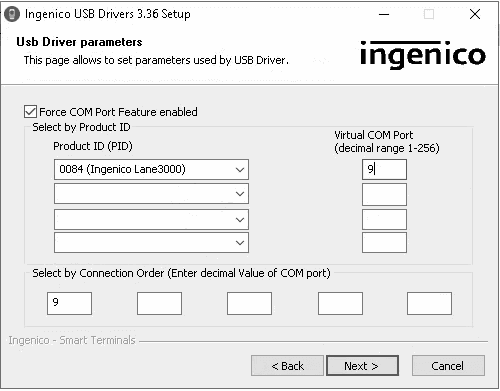
In the image above, you will notice I set the product ID to 0084 which is the Ingenico Lane 3000 ID. The setting may change depending on what device you use. If you are using a Lane 3600, you will use the ID 00A2. For Lane 7000 devices, you will use ID 0056. Again, the ID will depend on what device you are installing, so be sure to verify before setting the product ID before changing this setting and hitting next. Aside from that, you will want the Virtual COM port set to "9" and "Select by Connection Order" set to "9" as well, click next. This will bring you to the "Advanced Parameters" window. For this window, you will leave the default settings, hit next, and that will bring you to the "Choose Start Menu folder" window. In this window, you will see "Ingenico\Ingenico USB Drivers 3.36" in the top box. If you see this, this is what you want. It should already show by default, so go ahead and hit next again. You will then be brought to the installing window. Let the install run until you see "Completing the Ingenico USB Drivers 3.36 Setup Wizard". From this window, go ahead and hit finish.
Now that your device is plugged in and the installer has been installed, you will search for "Device Manager" in the Windows search. Open it and look for "Ports (COM & LPT)" and open the drop down. You should see your device show up with "(COM9)" at the end. Again, whatever device you installed will be what reads in the Device Manager. If you installed a Lane 3000, you should see "Ingenico Lane 3000". For all other devices, it should say the same, just verify that device you installed matches. Click on the COM9 to open the settings. Once in settings, click on the Port Settings tab at the top of the window. Verify that your "Bits per second" is set to "115200", if it is not, make the change and then press the "Advanced..." button at the bottom of the settings. This should open a new window called "Advanced Settings for COM9". In this window, all we care about is that "Use FIFO buffers" at the top of the window is UNCHECKED. If you leave it enabled, this can cause reading issues down the road. I have provided an image below to show you what your settings should look like...
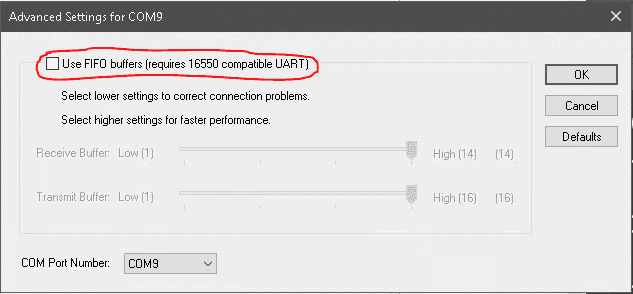
Go ahead and hit "OK" to exit the window. Now we will go to the "Force Com Port" tab at the top of the "Ingenico LaneXXXX (COM9) Properties" window. Just make sure that the settings match the image below.
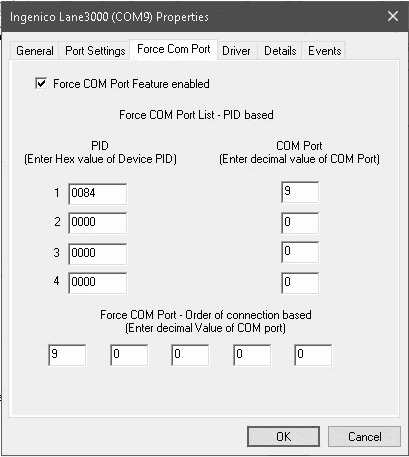
It is also important to note, if you did not setup the Installer correctly, you don't have to uninstall the drivers. You can change the Product ID in that left column where you see "0084" on the image provided above. If you did not set this correctly, I will have the correct ID's below for you to reference. Congratulations, you have successfully connected your Ingenico pin pad to the PC!
Ingenico Product ID's
Ingenico Lane 3000: 0084
Ingenico Lane 7000: 0056
Ingenico Lane 3600: 00A2